

Why is there MCP Tool Overload and how to solve it for your AI Agents
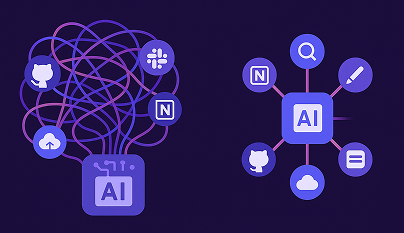
AI agents fail when they are exposed to too many MCP tools, which bloats prompts, slows reasoning, and increases the chance of incorrect or unsafe tool use. By limiting tools through well designed tool groups, teams can keep agents fast, accurate, and cost efficient.

As AI agents become more capable, it’s tempting to connect them to every system in your stack. Thanks to the Model Context Protocol (MCP), this is easy: you can expose tools from GitHub, Slack, Notion, and dozens of others, all under one gateway. In theory, the agent becomes a supercharged operator across your entire environment.
In practice, it breaks.
Agents saddled with too many tools become slower, less accurate, more expensive, and more prone to dangerous behavior. The root cause is simple: large language models (LLMs) don’t work well when you flood them with options they don’t need. And right now, most AI stacks are headed directly into this overload trap.
The Tool Overload Trap
MCP tools are exposed to the agent through prompt injections, meaning their names, descriptions, and parameters are embedded into the LLM’s context window. This context window is finite. The more tools you include, the more memory is consumed before the agent has even seen the user’s query.
In real-world deployments, it’s common to see situations like:
- 5 MCP servers, 30 tools each → 150 total tools injected
- Average tool description: 200–500 tokens
- Total overhead: 30,000–60,000 tokens. Just in tool metadata
Even with a generous context limit (e.g. 200k tokens in Claude), that can consume 25–30% of the window. And it gets worse with every additional server.
.png)
This figure from Tool-space interference in the MCP era: Designing for agent compatibility at scale shows the number of tools listed by each catalogued server directly after initialization.
Symptoms of Tool Overload
When you overwhelm an agent with tools, problems appear immediately:
- Prompt Bloat = High Costs
Each tool adds tokens to the prompt. More tokens = more API cost. It’s not unusual for a single response to cost 2–3× more when tool descriptions dominate the prompt.
- Slowdown in Response Time
A bloated context leads to longer model processing time. Even simple tasks take longer as the model scans an overloaded prompt.
- Poor Tool Selection
The agent may:- Pick the wrong tool from a similarly named set
LLMs rely on fuzzy pattern matching rather than symbolic resolution. When tools likeget_status,fetch_status, andquery_statusall appear in the same prompt, models often misfire based on partial matches or token similarity. According to Microsoft Research, common names likesearchappear in dozens of MCP servers, making disambiguation especially difficult.
- Freeze or fail to select anything
When faced with too many similar options, models sometimes take no action at all. Developers using frameworks like LangGraph and CrewAI report agents “getting stuck” or timing out when tool selection becomes ambiguous. Microsoft confirms that LLMs can “decline to act at all when faced with ambiguous or excessive tool options” in overloaded contexts.
- Hallucinate a tool call that doesn’t exist
Agents occasionally invent plausible-sounding tools likecreate_lead_entrywhen the actual tool name isadd_sales_contact. This is especially common when the number of tools is large and descriptions are inconsistent. Microsoft researchers note that hallucinations occur when “tools are inconsistently named or not documented in a way the model understands”.
- Pick the wrong tool from a similarly named set
- Reduced Accuracy on Core Tasks
When tool definitions crowd out relevant task info, models perform worse. For long-form inputs or research tasks, context compression leads to dropped instructions or forgotten constraints.
- Security and Safety Risks
OWASP’s A Practical Guide for Securely Using Third-Party MCP Servers warns that because MCP tools “can read files, call APIs, and execute code,” exposing too many tools increases the system’s attack surface and creates excessive agency. With broad, unscoped tool access, sensitive capabilities (e.g., database writes, email sending, filesystem access) can become available during unrelated workflows, making it difficult to maintain least-privilege boundaries or audit what the agent is actually allowed to do.
- Platform Limits
Many products impose hard limits:- Cursor enforces a cap of 80 tools per agent
- OpenAI limits developers to 128 tools
- Claude allows up to 120 tools
.png)
As Microsoft puts it:
“Longer context windows mean the model has to process more data, which can slow down things and cost more.”
- Microsoft Learn
Why This Problem Is Growing
MCP encourages modularity, that’s a good thing. But in practice:
- Teams connect to lots of servers (one per app or team)
- Servers publish many tools (often auto-generated)
- Gateways aggregate tools without filtering
What starts as a clean setup can become a 300+ tool mess in weeks. And because most agent frameworks expose all connected tools by default, overload creeps in silently. However, trimming down the active tool list usually solves these problems. Fewer tools = tighter prompts, clearer reasoning, better outcomes.
What You Can Do
While you could try managing tool overload manually, by deselecting tools one by one or editing configuration files, this quickly becomes unmanageable when tools are added dynamically or across dozens of servers. Agents can end up seeing the wrong tools, bloating prompts, slowing responses, or even hitting platform limits. Lunar MCPX solves this with Tool Groups: named collections of tools bundled across servers into meaningful workflows like “Development,” “QA,” or “Admin.” By assigning agents to only the Tool Groups they need, you can enforce scoped access, prevent accidental use of sensitive tools, and keep prompts lean, all while simplifying management across multiple servers and teams.
.png)
With Tool Groups, you can:
- Bundle tools by workflow (e.g. “Sales Outreach”, “Frontend Dev”)
- Limit exposure to only the tools needed for the task
- Reduce prompt size and LLM confusion
- Scope access safely without editing server configs
.png)
.png)
Top: Without tool groups, Cursor hits its 80-tool limit and throws a warning. Bottom: With tool groups in place, Cursor stays stable and only loads the tools enabled.
Why Tool Groups Help
Tool Groups aren’t just a convenience, they address core limitations in how LLM-based agents work. The benefits map directly to real-world pain points:
- Improved Agent Accuracy: By showing the agent only the tools it needs for the task, you reduce ambiguity and decision fatigue. Fewer options = more confident, correct tool use.
- Lower Costs: Every tool adds prompt tokens. Smaller toolsets mean cheaper API calls, faster responses, and fewer hallucinations that require retries.
- Smaller Context Window Footprint: The more tools you include, the more memory you burn. According to Microsoft, longer prompts not only slow down the model, they also risk pushing important user data out of memory.
- Built-in Protection Against Tool Limits: Platforms like Cursor enforce a ~40-tool cap; others like Claude and Copilot have similar limits. Tool Groups make it easy to stay well under those thresholds without manual config.
In Summary
The more tools your agent sees, the less effective it becomes. Tool overload leads to:
- Higher cost
- Slower responses
- Confused reasoning
- Unintentional tool misuse
The fix is simple in principle: scope down the toolbox. Show agents only what they need. When done accurately and easily using Tool Groups, the results speak for themselves - sharper, faster, safer agents that actually do what you want. And Tool Groups make that scalable.
Ready to Start your journey?
Govern all agentic traffic in real time with enterprise-grade security and control. Deploy safely on-prem, in your VPC, or hybrid cloud.
.png)

.png)
.png)

